
Your slow laptop might actually have a tired battery inside it. Recent tech reports show that aging power packs often force machines to run at half their normal speed. When the battery wears down, your operating system slows down the processor on purpose so the computer does not shut down without warning.
The quick fix is testing your power pack before buying new parts. Many people think their hard drive is full or that they need a brand-new computer, but swapping a worn battery can make an old machine feel fast again. It is one of the easiest ways to solve laptop lag without spending big money.
Most of us open our computers expecting quick clicks and smooth video. Instead, programs freeze and the fan sounds like a small airplane taking off. Tech writers at How-To Geek recently highlighted how weak cells drop their power output over time. When your laptop notices that the battery cannot handle sudden power spikes, it cuts the speed of your chips. You feel that safety step as pure lag.
Why an Old Battery Makes Your Machine Run Slow
Lithium batteries lose strength as they get older. Every time you plug your charger in and fill the battery up, the chemical parts inside break down just a tiny bit. After two or three years of daily use, the battery cannot deliver steady power when your computer works hard.
Computers need steady energy to launch a heavy web browser or edit a photo. If your chip asks for a sudden burst of power and the battery fails to supply it, the screen goes black instantly. To stop that crash from happening, modern operating systems quietly turn down your processor speed. They protect your open files by making your computer run slow.
I saw this happen with my own portable setup last month. My work machine began taking ten seconds just to open a text file. I spent hours closing background apps and cleaning out folders, thinking junk files were the culprit. The minute I plugged into the wall with a tested charger, the machine sped up. A bad cell was starving the hardware.
This power drop affects millions of remote workers and students every day. When your machine feels sluggish away from the wall, do not panic. Your computer is simply trying to keep itself alive on low power. It is a smart design choice, but it can drive you crazy if you do not know the cause.
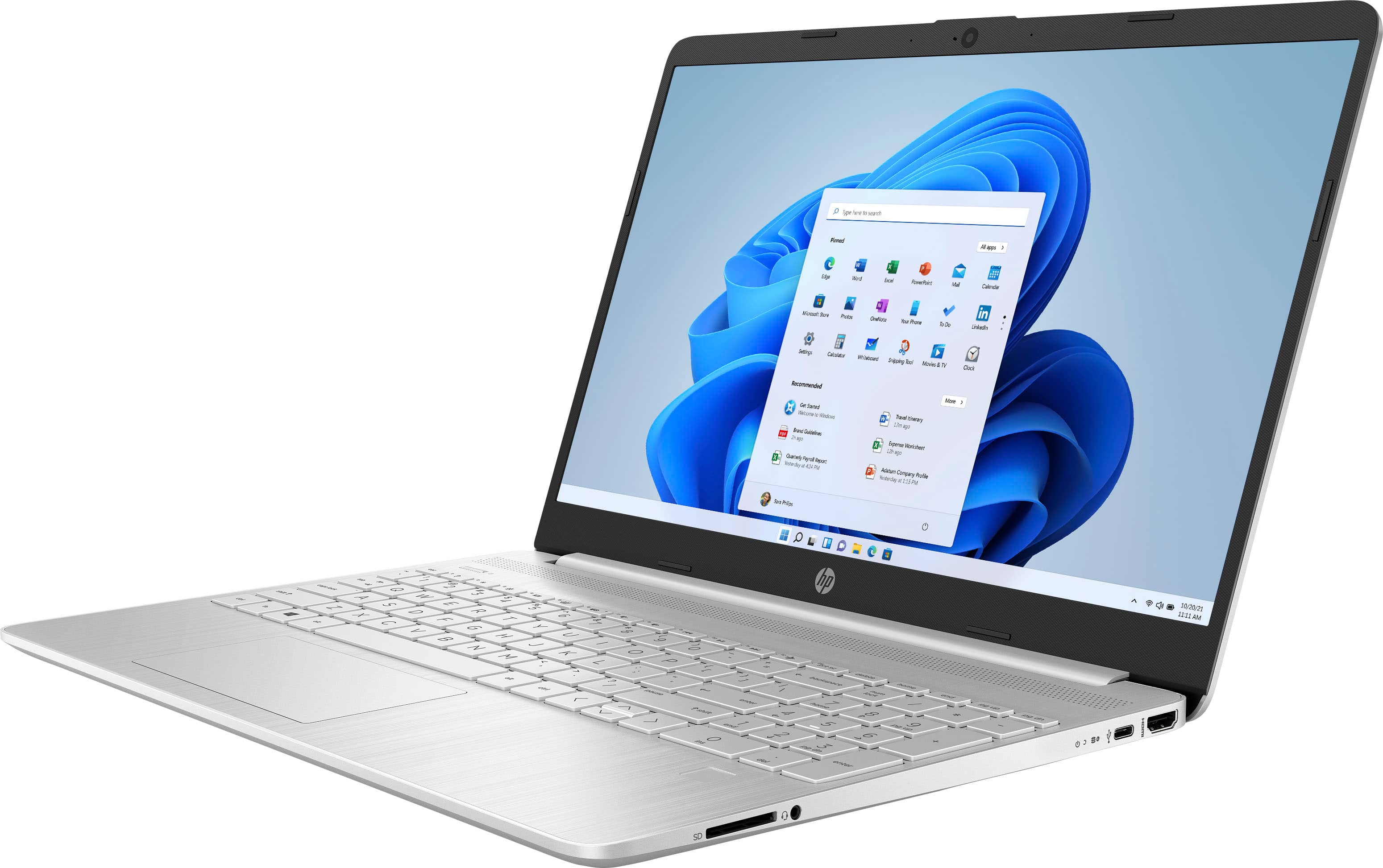
How to Speed Up a Slow Laptop with Built-In Tools
You can check the health of your battery in under two minutes without buying special software. Both Windows and Mac computers include free reports that show you the exact state of your power cells. Running these tests lets you know if a hardware swap will solve your speed issues.
Checking Battery Health on Windows 11
Windows has a hidden tool that builds an easy report you can open in any browser. Here are the exact steps to find it:
- Right-click the Start button in the bottom left corner of your screen.
- Select Terminal (Admin) or PowerShell (Admin) from the list.
- Type this command: powercfg /batteryreport and press Enter.
- Open your main drive, go to the Users folder, click your username, and open the file named battery-report.html.
Look at the lines labeled Design Capacity and Full Charge Capacity. If the full charge number is much lower than the design number, your battery is worn out. You can also visit our easy computer maintenance guide to learn about clearing disk clutter while you run your hardware checks.
Checking Battery Health on macOS
Apple makes it even easier to see how your battery holds up over time. Follow these quick steps on any modern MacBook:
- Click the Apple menu in the top left corner of your screen.
- Choose System Settings from the drop-down menu.
- Scroll down the left sidebar and click Battery.
- Look for the Battery Health line and click the small info icon next to it.
If you see the word Normal, your battery is doing fine. If the status says Service Recommended, macOS has found a worn battery. That warning means your system is likely slowing down your apps to stay stable during peak usage.
Other Hidden Reasons Your Laptop Runs Slow
A failing battery is not the only thing that pulls your machine down. Dust, startup apps, and bad cables also play a huge role. If your battery report looks clean and healthy, check these common choke points next.
Dust buildup inside the fan vents can choke off air flow. When heat cannot escape, the processor gets hot and throttles itself down to avoid burning out. Cleaning your vents with a can of compressed air often brings instant speed gains. Just blow air gently into the side vents while the machine is turned off.
Startup programs are another sneaky cause of everyday lag. When you turn on your laptop, dozens of apps might try to launch at the exact same moment. Chat apps, cloud drives, and game stores all love to sit in the background and eat up memory. You can turn them off in Task Manager on Windows or under Login Items on a Mac.
Keeping your system software updated is also a smart defense against sudden slowdowns. Old code can clash with new apps and chew up processing cycles. Good digital hygiene is just as basic as good Computer security practices, which help you avoid malicious scripts that steal your processor power to run junk in the background.
Just like how your body needs rest after heavy work, your computer chips need clean power and cool air to stay quick. When we ignore basic maintenance, small problems pile up until simple typing feels like a chore. You can even read how Amazon Researchers Study Rainforest Dream Traditions to Learn How We Sleep to see how natural cycles affect performance in the real world.
Simple Habits That Keep Your Laptop Running Fast
You do not need to be a computer repair pro to keep your machine in top shape. A few simple daily habits will stop lag before it starts and protect your battery life for years to come. Here is what works best based on everyday use.
First, restart your laptop at least once every three or four days. Shutting down clears out temporary files and gives your memory a clean slate. Leaving a computer asleep for weeks leads to slow app launches and weird visual glitches. A quick reboot fixes more problems than almost anything else.
Second, avoid leaving your computer plugged into the wall every single hour of the day. Keeping a lithium pack at one hundred percent power in a hot room wears it down fast. Most modern laptops have a setting in their power menu that stops charging at eighty percent. Turn that setting on if you work at a desk all day.
Third, keep your hard drive from filling up completely. Modern operating systems need at least fifteen to twenty gigabytes of free space just to shuffle active memory around. When your storage gets red-line full, opening even a basic web tab becomes painfully slow. Move large family videos or old project files to an external drive or cloud locker.
Finally, inspect your power brick and cable. Frayed wires or cheap off-brand chargers can fail to deliver the proper wattage to your machine. When your laptop does not get the correct voltage, it drops into low-power mode even while plugged directly into the wall outlet. Always stick to original chargers or verified brands that match your machine's exact specs.
What Should You Do Next?
Start by generating that battery report today. It takes less than five minutes and tells you right away if your hardware is starving for energy. If your battery capacity is cut in half, search for a certified replacement pack online or visit a local repair shop. Spending fifty dollars on a fresh battery can easily give you another two or three years of smooth, speedy computing.
Has your laptop slowed down recently, and did you notice it getting worse when unplugged from the wall? Check your battery stats tonight and see if a simple power fix solves your slowdown for good.